---
layout: page_v2
title: Professor Prebid
description: Professor Prebid User Guide
sidebarType: 8
---
# Professor Prebid User Guide
{:.no_toc}
- TOC
{:toc}
## Introduction
Professor Prebid is an open source Chrome extension to allow easy debugging and troubleshooting on publisher websites using Prebid.js.
{% include vimeo-iframe.html id="1003776317" title="1003776317" %}
Further Content:
- [Transcript of this video](/tools/prof-prebid-video.html)
- [Prebid.js Config Documentation](/dev-docs/publisher-api-reference/setConfig.html)
## Installation
Simply visit the dedicated [Chrome Store link](https://chrome.google.com/webstore/detail/professor-prebid-v02/kdnllijdimhbledmfdbljampcdphcbdc) and click on `Add to Chrome`. Don't forget to pin it so you can have one-click access.
Alternatively, if you want to compile it yourself and run locally, please clone Github's [repository](https://github.com/prebid/professor-prebid) and follow the instructions.
## Usage
Professor Prebid will automatically detect if the page has one or more Prebid instances. It Prebid is found, the extension's icon will display a badge like: 
Click on the icon to start interaction.
### Features
#### Adunits
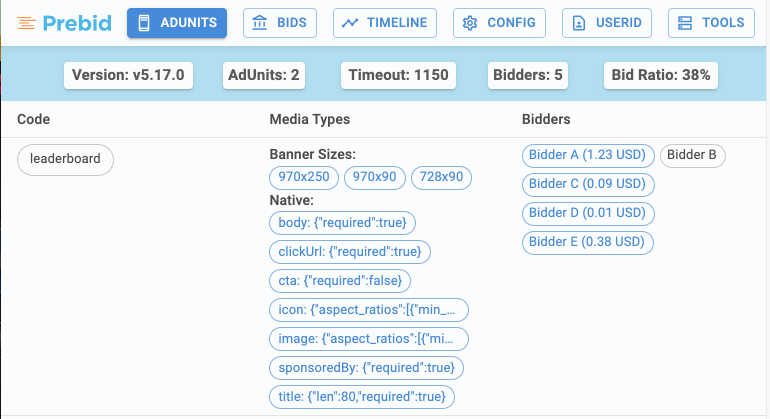
This is the default view and allows you to quickly check all the adunit codes available to Prebid, along with the associated media types and bidders.
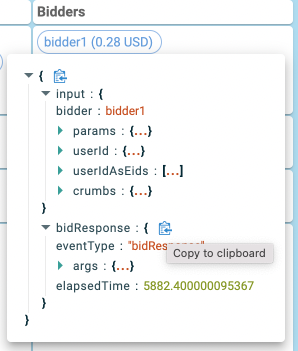
Each bidder entry is clickable, showing the associated input and bid response. You can easily copy a specific part of the JSON to the clipboard.
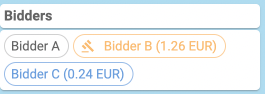
Finally, you can also spot who is the winning bidder and whether its ad was rendered.
#### Bids
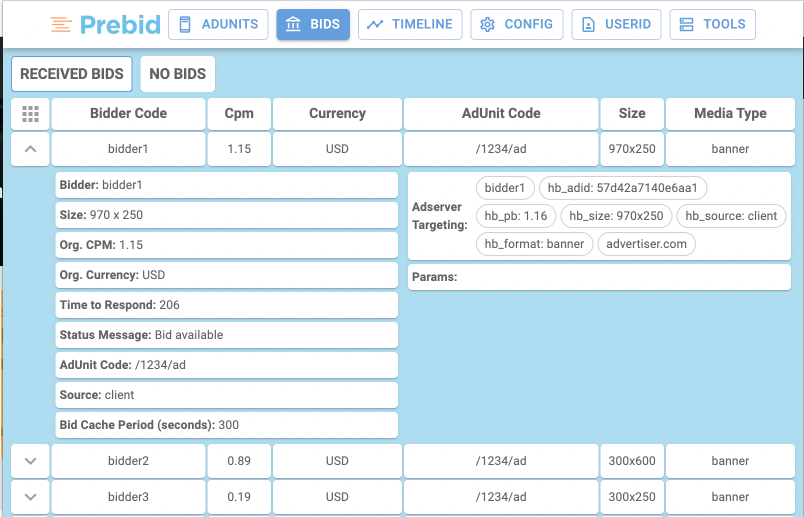
This screen allows you to verify and compare all the bids placed via Prebid.js and their metadata including:
- Bid value
- Bid currency
- Response time
- Adserver Targeting keywords
#### Timeline
This view shows you the auction's main milestones:
- Auction start timestamp
- Bidders calling sequence and timestamp
- Each bidder response time
- Timeout threshold
- Auction end timestamp
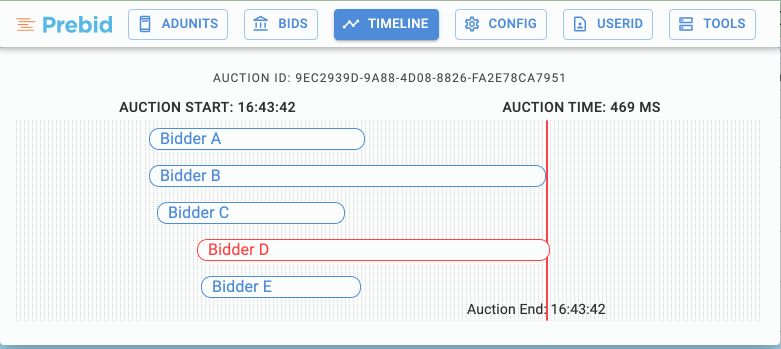
Professor Prebid renders different timeline views using the auction id as key. This can happen if the publisher has an auto-refresh or manages each adunit independently.
#### Config
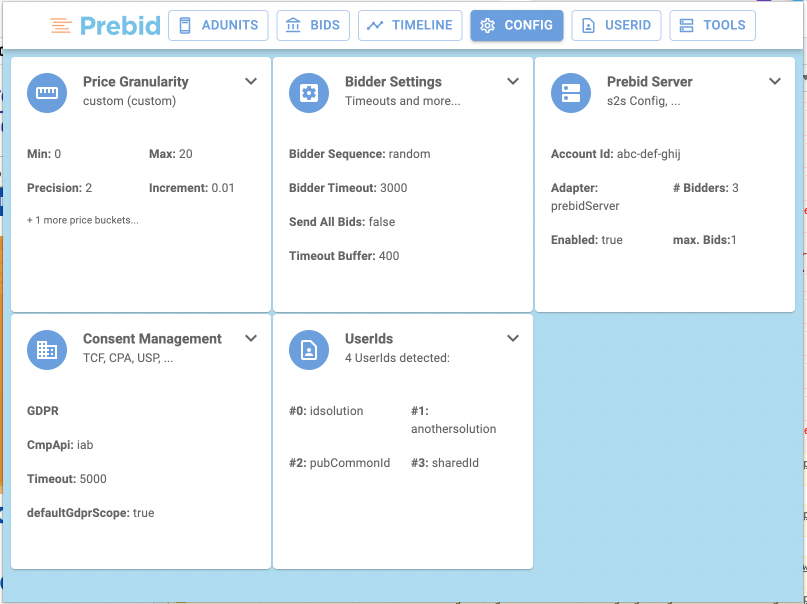
You will find here the main modules and their configuration:
- Price Granularity: low/medium/high/auto/dense/custom
- Bidder settings: calling order, timeout, …
- Prebid Server: id, bidders, endpoints, …
- CMP: Support different compliance frameworks (TCF, CCPA...), encoded consent string, decoded consent string
- User ID modules
#### User ID
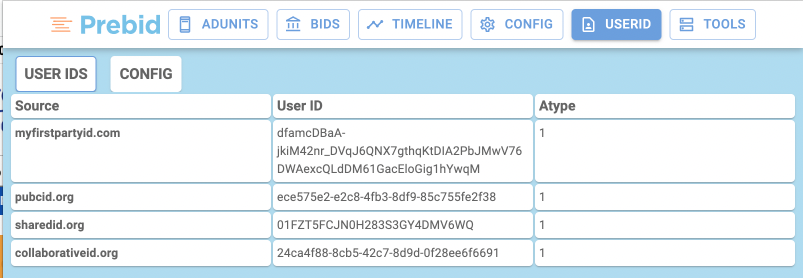
This view displays the configuration and the outcome of the different id providers found on page.
#### Tools
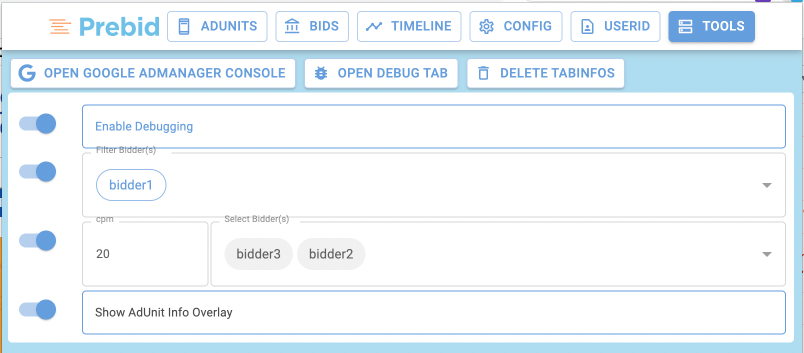
This tab provides advanced troubleshooting tools:
- Shortcut to GAM console
- Activation of Prebid Debug data on console
- Bid filtering: allowlist of bidders
- Bid CPM override
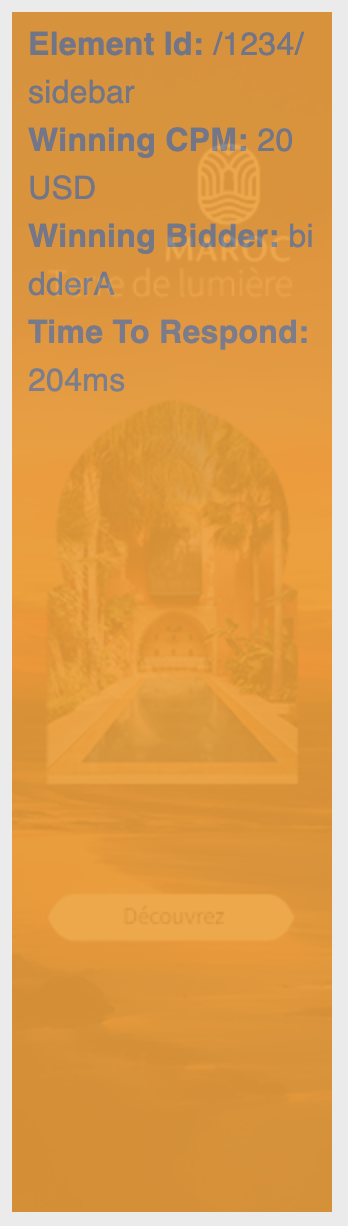
- Adunit overlay: shows details about the winner over the creative on page
Here's an example of an overlay:
#### User Sync Network Inspector
{: .alert.alert-info :}
Note: This is a tool that does require some technical knowledge because it utilizes the Chrome Devtools.
##### Use Case
When SSP user sync URL’s are requested on a Publisher site, they typically will initiate calls or redirect to other resources which will initiate or redirect to other resources, etc. When it comes to privacy compliance, it can be difficult to track down if all resources down the request chain are obeying all of the necessary privacy compliance rules. Are all of the correct query parameters being passed where they should be down the chain?
The goal of this tool doesn’t attempt to fix scenarios where compliance params might not be present, instead it is a tool designed to quickly show transparency around this. It is up to the SSP to be aware of how compliance params are being used and to act accordingly based on this.
##### How to Use
{: .alert.alert-info :}
Note: It is advised when testing User Sync URL's that you clear cookies relative to the domain you are testing. This will ensure that results are in-line with an initial visit to the current page. Additionally, the first resource matching the root URL will be used to generate the initiator request chain.
- With the Professor Prebid extension on, open the Chrome developer tools by right-clicking anywhere on a webpage and selecting `Inspect`.
- Navigate to the `Profressor Prebid` panel (top-right), then to the `Network Inspector` tab in the submenu directly below.
- Enable the feature by sliding the toggle below.
- Enter a User Sync root URL to listen for as the page loads to generate a request chain from, then click the "Set URL" button. For example, `https://ads.pubmatic.com/AdServer/js/user_sync.html?kdntuid=1&p=159096&us_privacy=1YNY`
- Close the developer tools window, re-open the Chrome Dev Tools again (for changes to reflect, a new instance of the developer tools is required) and navigate back to `Professor Prebid --> Network Inspector`
- Lastly, click the  icon (top-right). This will refresh the page and generate a new initiator request chain below (If one is present for the provided User Sync Root URL).
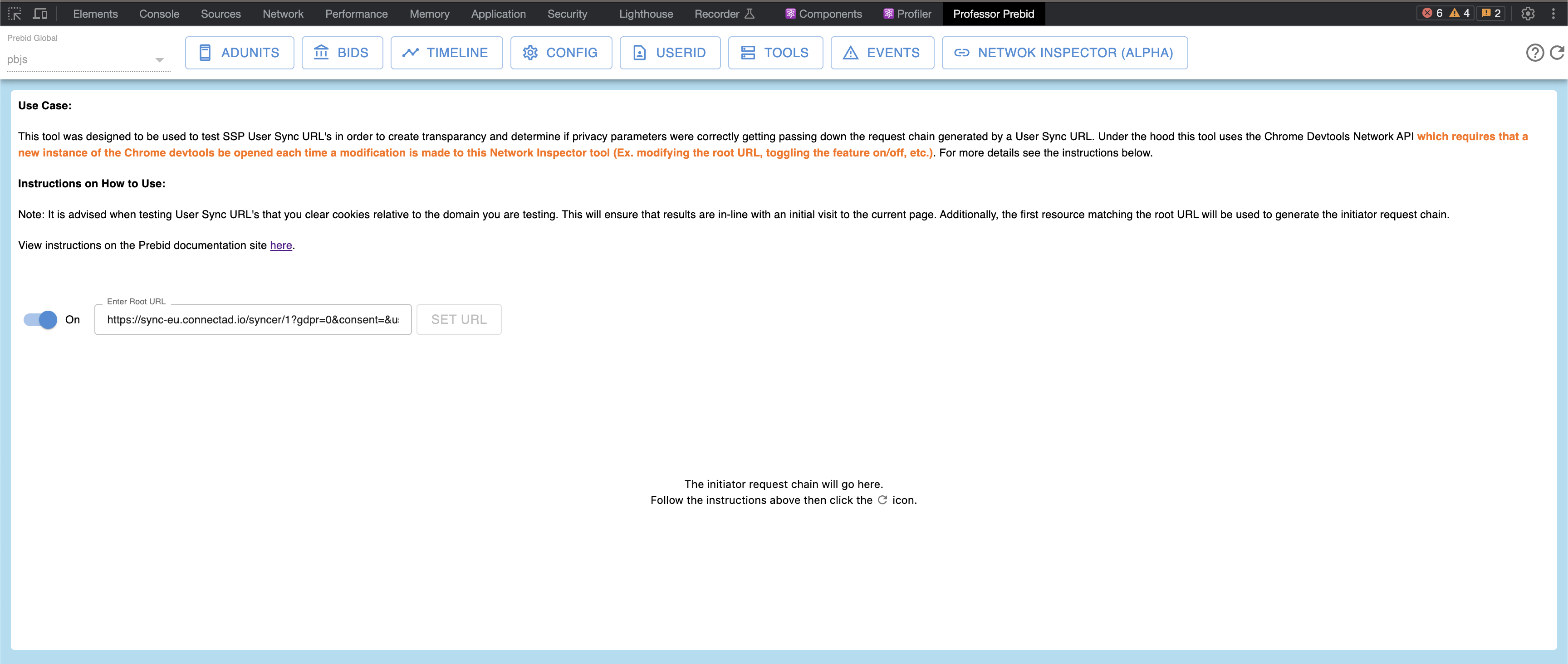
The UI of the User Sync Network Inspector:
The Request Chain
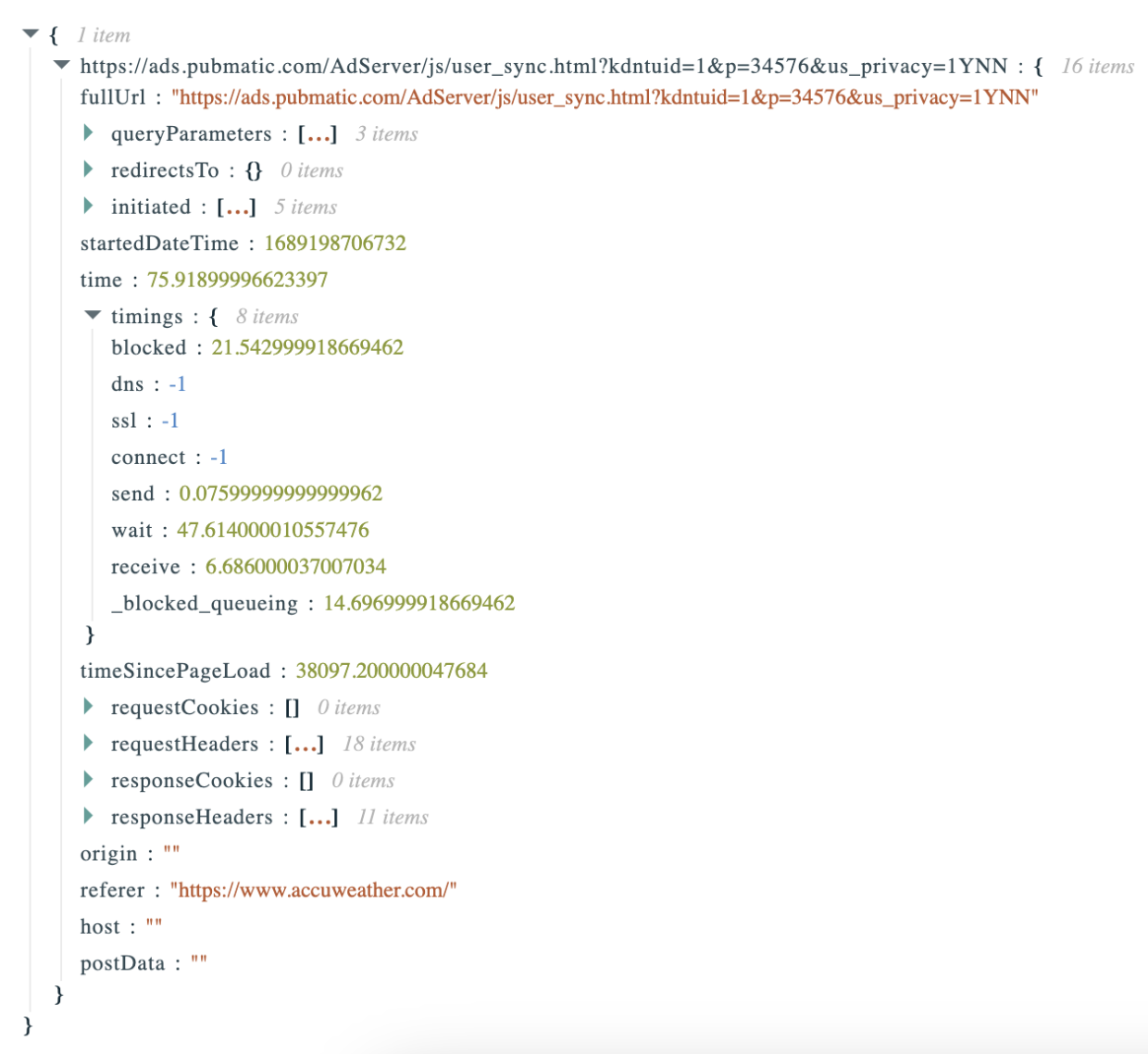
Data for each resource on a request chain is taken from that resources HAR entry (For more info on HAR entries, see: [http://www.softwareishard.com/blog/har-12-spec](http://www.softwareishard.com/blog/har-12-spec))
If a user sync root URL resource is loaded on a webpage, the final resulting request chain object will look like the following (the “redirectsTo” and “initiated” fields can contain zero to many nested resources as values):
Note: `redirectsTo` means a resource explicitly redirected to another resource. `initiated` means a resource imported/parsed anther resource (ex: a resource loaded another resource via an html `